Video playback
Open a video from Photos, Dates, a gallery or Category → Videos. The viewer uses an embedded player with a thumbnail poster. Playback starts when you press Play; opening a video does not autoplay it.
Controls
Use the timeline to seek, the speaker control for volume, and the settings menu to change playback speed. Fullscreen is available from the player. Picture-in-picture is shown when the browser supports it. On phones, videos play inline and controls remain touch-accessible.
When the player has keyboard focus:
| Key | Action |
|---|---|
| Space | Play or pause |
| Left / Right | Seek backward / forward five seconds |
| Up / Down | Increase / decrease volume by 10% |
| Escape | Exit player fullscreen first |
These shortcuts apply inside the player. Typing in a text field or activating a button keeps that control's normal behavior. Moving to another media item or closing the viewer stops the previous player.
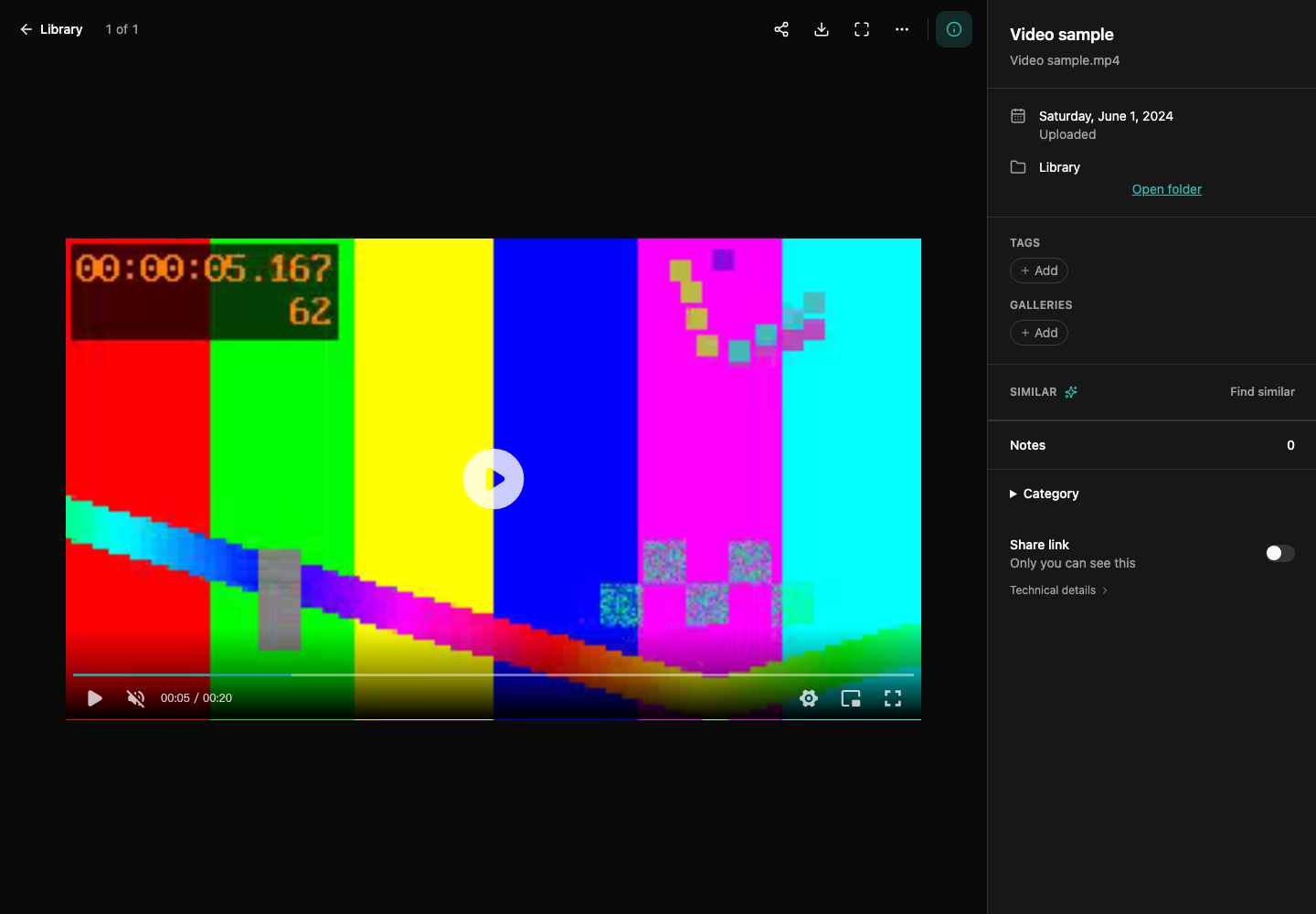
The video is a project-generated test pattern; no personal recording is included.
When a video does not play
A thumbnail can be available even when the browser cannot decode the original video's codec. The player does not automatically transcode every video into a browser-supported format. If loading fails, use Retry after checking the storage connection, or download the original for a compatible local player. An unavailable external source can also prevent streaming.
The viewer's fullscreen image controls and the video's player fullscreen are separate. Third-party licenses in player settings opens the bundled notices. Live Photo motion is a separate feature: see Media tools. For thumbnail processing and video categories, see Categories and private notes.